If you’re running marketing campaigns without UTM parameters, you’re essentially flying blind. I’ve seen companies spend thousands on ads with no idea which campaigns actually drive results — all because they never tagged their links.
UTM parameters are simple tracking codes you add to URLs. They tell your analytics tool exactly where traffic came from, which campaign sent it, and what content made people click. No guesswork. No assumptions. Just data.
In this guide, I’ll explain what UTM parameters are, how they work, and how to use them effectively. Whether you’re new to campaign tracking or cleaning up messy UTM practices, you’ll walk away with a system that actually works.
What Are UTM Parameters?
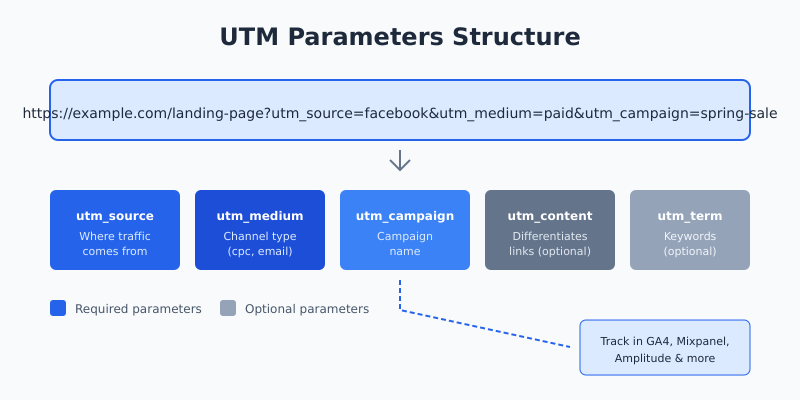
UTM parameters (Urchin Tracking Module) are tags you add to the end of a URL to track where your website traffic comes from. When someone clicks a UTM-tagged link, your analytics tool captures the information and shows you exactly which marketing efforts are working.
The name comes from Urchin Software, which Google acquired in 2005 to build Google Analytics. The tracking system stuck, and now UTM parameters are the universal standard for campaign tracking — supported by Google Analytics 4, Mixpanel, Amplitude, and virtually every analytics platform.
Here’s what a UTM link looks like:
https://example.com/landing-page?utm_source=facebook&utm_medium=paid-social&utm_campaign=spring-saleEverything after the ? is UTM data. When visitors click this link, your analytics shows traffic from Facebook, via paid social, for your spring sale campaign. Simple.
The 5 UTM Parameters Explained
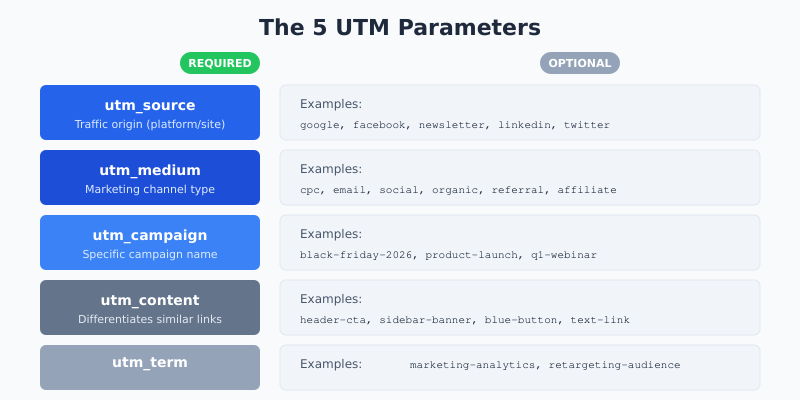
There are five UTM parameters. Three are essential, two are optional but useful.
Required Parameters
utm_source — Where the traffic comes from. This is the platform, website, or referrer sending visitors.
utm_source=googleutm_source=newsletterutm_source=linkedin
utm_medium — The marketing channel or type of traffic. This categorizes how the traffic arrived.
utm_medium=cpc(cost per click ads)utm_medium=emailutm_medium=social
utm_campaign — The specific campaign name. Use descriptive names you’ll recognize months later.
utm_campaign=black-friday-2026utm_campaign=product-launchutm_campaign=weekly-digest
Optional Parameters
utm_content — Differentiates similar links in the same campaign. Perfect for A/B testing or multiple CTAs.
utm_content=header-ctautm_content=blue-button
utm_term — Originally for paid search keywords. Now useful for audience targeting or ad variations.
utm_term=marketing-analyticsutm_term=retargeting-audience
How to Create UTM Links
You can build UTM links manually or use a tool. Here’s both methods.
Manual Method
Add parameters to any URL using this structure:
https://yoursite.com/page?utm_source=SOURCE&utm_medium=MEDIUM&utm_campaign=CAMPAIGNRules to follow:
- Start parameters with
?after the URL - Separate each parameter with
& - No spaces — use hyphens or underscores
- Always use lowercase (analytics is case-sensitive)
Using Google’s Campaign URL Builder
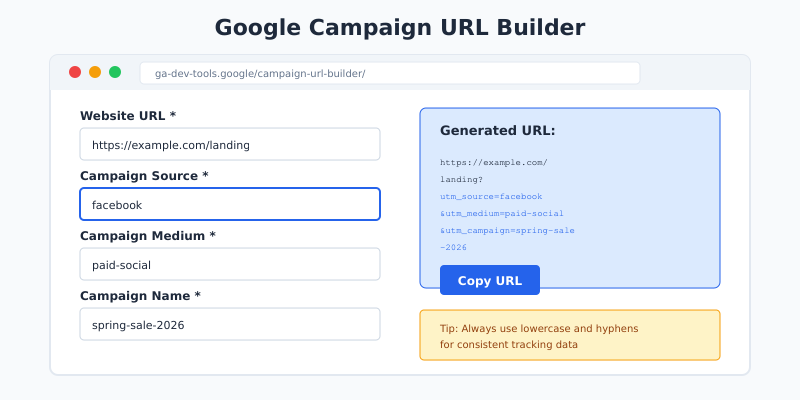
The easiest method is Google’s Campaign URL Builder. Enter your URL and parameters, and it generates the tagged link automatically.
Custom UTM Parameters: Advanced Tracking
Beyond the standard five, you can create custom UTM parameters for specific tracking needs. GA4 won’t recognize them automatically, but you can capture them with custom dimensions.
Common custom parameters:
utm_creative— Track specific ad creativesutm_audience— Identify target audience segmentsutm_placement— Track ad placement locations
“What gets measured gets managed.”
— Peter Drucker
Where to Find UTM Data in GA4
Once you’re using UTM parameters, here’s where to find the data in Google Analytics 4.
Traffic Acquisition Report
Go to Reports → Acquisition → Traffic acquisition. This shows session-level data grouped by source, medium, and campaign.
User Acquisition Report
Go to Reports → Acquisition → User acquisition. This shows how users first discovered your site — useful for understanding which campaigns bring new visitors.
Explorations
For deeper analysis, create a custom exploration with UTM dimensions:
- Session source
- Session medium
- Session campaign
- Session manual ad content (utm_content)
- Session manual term (utm_term)
UTM Best Practices
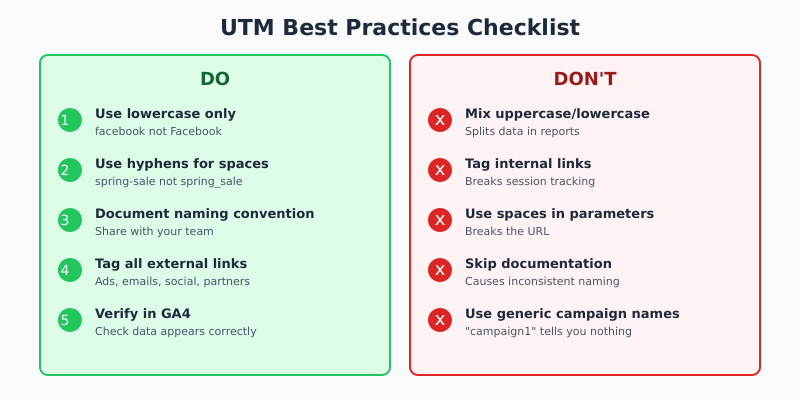
After implementing UTM tracking for dozens of clients, these are the practices that actually matter.
Pros of Good UTM Hygiene
-
Accurate attribution — know exactly what’s working -
Clean reports — no duplicate or fragmented data -
Better budget decisions — allocate spend based on real data -
Historical insights — compare campaigns over time
Common UTM Mistakes to Avoid
-
Inconsistent naming — “Facebook” vs “facebook” splits your data -
Tagging internal links — never use UTM on your own site links -
Using spaces — breaks URLs; use hyphens instead -
No documentation — without a naming guide, chaos follows
UTM Naming Convention Template
Create a consistent naming system your whole team follows. Here’s a template that works:
| Parameter | Format | Example |
|---|---|---|
| utm_source | platform name (lowercase) | facebook, google, newsletter |
| utm_medium | channel type | cpc, email, social, affiliate |
| utm_campaign | name-date or name-quarter | spring-sale-2026, q1-webinar |
| utm_content | content identifier | hero-cta, sidebar-banner |
| utm_term | keyword or audience | brand-aware, retargeting |
Troubleshooting UTM Issues
When UTM data doesn’t show up correctly, check these common issues:
Problem: Parameters not appearing in GA4
Solution: Ensure the link format is correct. The first parameter uses ?, subsequent ones use &. Check for typos in parameter names.
Problem: Data split across multiple rows
Solution: Case sensitivity issue. “Email” and “email” are different in GA4. Standardize on lowercase.
Problem: UTM links look ugly
Solution: Use a URL shortener like Bitly or your own branded short domain. The tracking still works.
Problem: Special characters breaking links
Solution: URL-encode special characters. Spaces become %20, ampersands in values become %26.
FAQ
What is a UTM link?
A UTM link is a regular URL with tracking parameters added to the end. These parameters tell analytics tools where traffic came from, which campaign sent it, and what content was clicked. Any URL can become a UTM link by adding parameters after a question mark.
How do UTM parameters work?
When someone clicks a UTM-tagged link, your analytics tool reads the parameters and records them with the visit. The data appears in your traffic reports, showing exactly which source, medium, and campaign drove each visit. The visitor sees a normal webpage — UTM parameters don’t affect the content.
Do UTM parameters affect SEO?
No, UTM parameters don’t directly affect SEO rankings. Google ignores UTM parameters when indexing pages. However, avoid using UTM-tagged links in places that get crawled (like your main navigation) to prevent duplicate content issues. Use them only for external marketing links.
How long should UTM parameters be?
Keep UTM parameters concise but descriptive. While there’s no strict limit, extremely long URLs can break in some email clients or get truncated on social platforms. Aim for total URL length under 2,000 characters to ensure compatibility everywhere.
Can I use UTM parameters with Google Ads?
Yes, but Google Ads has its own auto-tagging (GCLID) that provides more detailed data. You can use both — enable auto-tagging in Google Ads and add UTM parameters for cross-platform consistency. UTM data will still appear in GA4 alongside Google Ads data.
Key Takeaways
UTM parameters are essential for understanding which marketing efforts actually drive results. Without them, your analytics shows traffic — but not where it really came from.
Here’s what to do next:
- Create a naming convention — document it and share with your team
- Use lowercase everything — prevents data fragmentation
- Tag all external campaigns — ads, emails, social posts, partner links
- Never tag internal links — breaks session tracking
- Check your data — verify UTMs appear correctly in GA4
Start with the basics: source, medium, and campaign. Add content and term when you need more granular tracking. The best UTM system is one your team actually uses consistently.
Once you have UTM tracking in place, the data feeds directly into your multi-touch attribution analysis, helping you understand how different channels work together to drive conversions. For even more accurate tracking data, especially with ad blockers affecting 30%+ of traffic, consider implementing server-side tracking.

Leave a Reply